QUICK GUIDE
How to use this site
Show the markets you follow, organized in your own tabs and order.
01
Browse markets by tab
Tap a tab above, or swipe across the chart area to switch tabs.

02
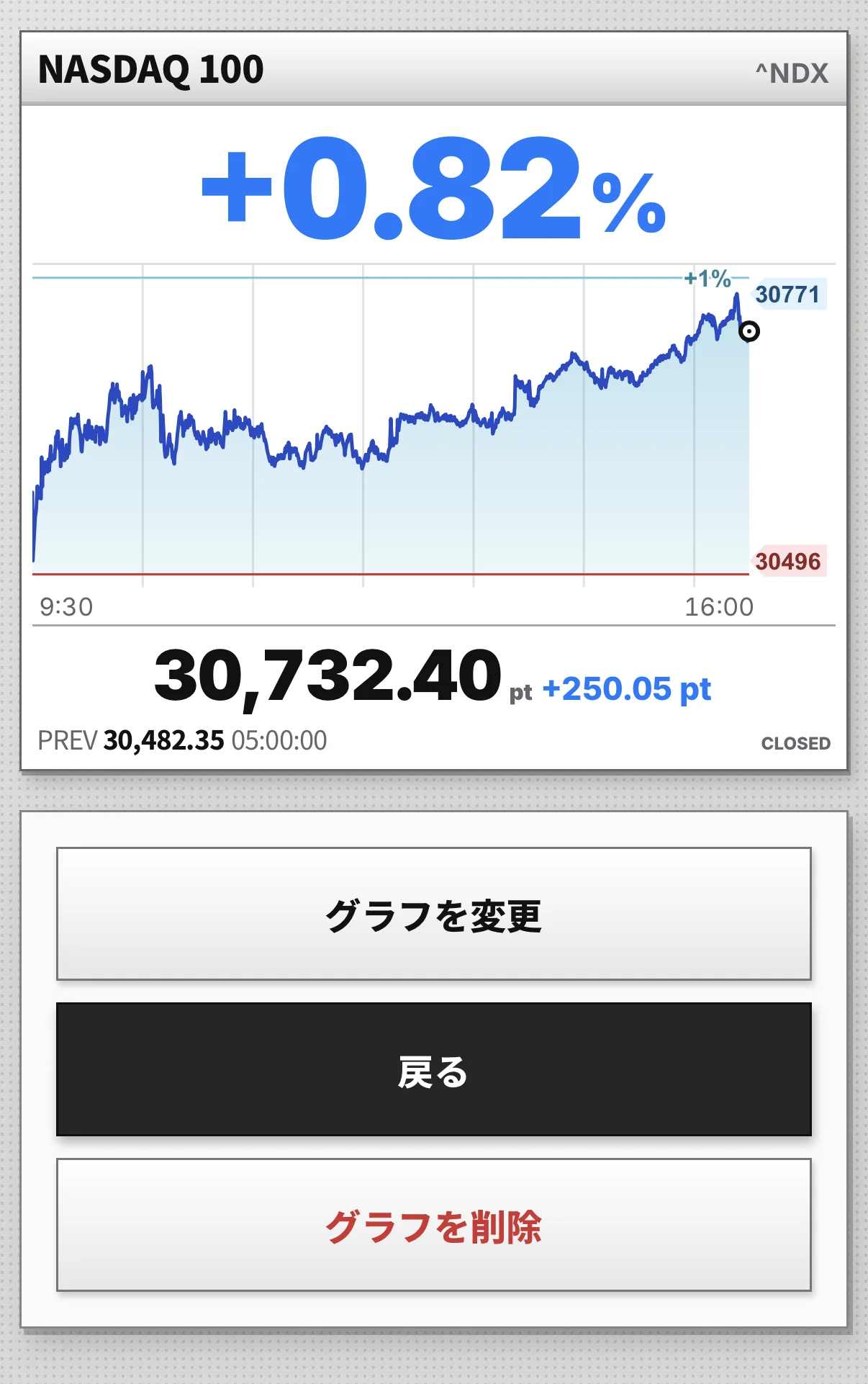
Add, change or remove a chart
Tap ‘+ Add chart’ in the grid. Open a chart to change or remove it.

03
Drag to reorder charts
Press and hold a chart, drag it to the new position, then release.

04
Customize your tabs
Tap ‘+’ to add a tab. Press and hold a tab name to reorder, rename or delete it.

- Tab and chart settings are saved in this browser.
05
Change chart colors
Use Settings at the top right of the dashboard to change gain and loss colors.

06
Sync charts across devices
Create an account in Settings and sign in to sync chart settings across devices.
